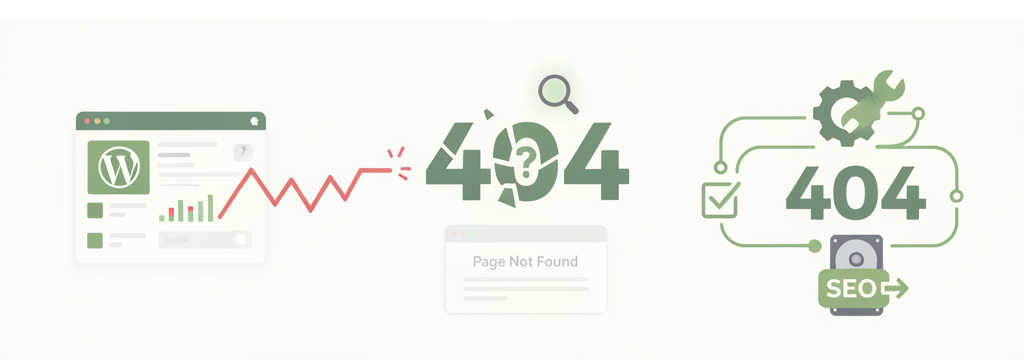
Resolve 404 errors in wordpress immediately to eliminate crawl equity waste, conversion drop-offs, and rank degradation. When search bots hit dead endpoints, discovery slows across revenue-generating commercial URLs. Execute an SEO site audit regularly to identify broken client-side requests and reinforce your domain architecture.
The Direct Business Impact of 4xx Response Codes
Unresolved 404 response codes deplete enterprise crawl budgets and break user conversion funnels. Search engine bots throttle request volume on domains with excessive dead ends, directly reducing indexing speed for new assets. Unremediated dead links permanently waste existing backlink equity on non-existent endpoints.
How to Find and Fix 4xx (404) Errors in WordPress Using an SEO & Audit Plugin
Broken links and 4xx status codes—most commonly 404 Not Found errors—are a natural side effect of managing a growing website. Whether you’ve updated a blog post URL, deleted outdated content, or changed site structure, broken links negatively affect user experience, waste your crawl budget, and can hurt your overall SEO rankings.
In this guide, we’ll walk through a step-by-step process to audit, fix, and prevent 4xx errors on your WordPress site using standard SEO audit tools and WordPress administrative controls.
What is a 4xx / 404 Error?
A 4xx class response code indicates a client-side error. A 404 Not Found error specifically means that a web crawler or visitor attempted to access a page on your domain that no longer exists, was moved without a proper redirect, or was linked with a typo.
Step 1: Identify Where the Broken Links Originate
Before fixing a broken link, you need to determine where it is being referenced on your site.
- Access Your SEO / Site Audit Crawler:
- Navigate to your WordPress Dashboard and open your SEO plugin’s crawler or site audit section.
- Navigate to your WordPress Dashboard and open your SEO plugin’s crawler or site audit section.
- Inspect the Affected URLs:
- Locate the list of flagged 4xx / 404 URLs.
- Click on the settings or options menu (often represented by a gear icon) next to each broken URL.
- Check Internal Occurrences:
- Select “View Linking Pages” or “List Occurrences.”
- This identifies the exact pages, posts, menus, or widgets on your site containing the broken link.
Step 2: Choose the Right Fix Method
Once you know where the broken link is coming from, select the appropriate remediation method based on the scenario:
Method A: Set Up a 301 Permanent Redirect (Best for Renamed/Moved Pages)
If a page was renamed, updated with a new URL slug, or moved to a new category:
- Open the Redirections tool inside your SEO plugin or redirection management module.
- Old URL: Enter the original broken path (e.g., /blog/old-article-title/).
- New URL: Enter the updated, live URL (e.g., /blog/new-article-title/).
- Redirect Type: Choose 301 Permanent Redirect.
- Save changes.
Method B: Update or Remove Internal Links (Best for Typos)
If the page exists, but an internal post or menu contains a broken link due to a typing error:
- Edit the source page or post identified in Step 1.
- Replace the incorrect hyperlink with the valid URL, or remove the broken link completely.
Method C: Mark as 410 Gone or Ignore (Best for Permanently Deleted Pages & URL Parameters)
- Permanently Deleted Content: If a page was deleted intentionally and has no relevant replacement, avoid redirecting it to your homepage (search engines may flag this as a “Soft 404”). Instead, configure your server or plugin to return a 410 Gone header or let it return a clean 404.
- Tracking & Parameter URLs: URLs containing query strings or tracking parameters (e.g., /signup?ref=campaign) are often not actual page errors. You can safely add these to your SEO plugin’s “Ignored” list so they don’t impact your health score
Step 3: Clean Up Your Sitemap and Search Console
After applying fixes in WordPress, perform a cleanup to ensure search engines index the updated structure:
- Regenerate Your XML Sitemap:
- Go to your SEO plugin’s Sitemap settings and trigger a sitemap regeneration.
- Go to your SEO plugin’s Sitemap settings and trigger a sitemap regeneration.
- Validate in Google Search Console:
- Log in to Google Search Console and go to Pages > Not Found (404).
- Select the resolved URLs and click Validate Fix.
- Run a Link Scanner:
- Run your site audit plugin or broken link checker to verify that all flagged broken URLs have been resolved.
- Re-audit:
- Re-run your site crawler after 48 to 72 hours to confirm zero remaining 4xx errors.
Best Practices to Prevent Future 4xx Errors
- Create Redirects Instantly: Always set up a 301 redirect immediately whenever you alter a post or page slug.
- Automate Crawl Reports: Enable weekly audit email alerts in your SEO plugin to catch broken links early.
- Maintain Real-time Monitoring: Keep a lightweight broken link checker active to catch broken external and internal links as they occur.
- Avoid Flat Deletions: Rather than outright deleting old content, consider consolidating smaller posts into comprehensive guides and redirecting the old paths to the new resource.